Field guide
A session at a ticket, from unpacking the kit to handing back the result. It takes about a quarter of an hour at the desk, most of it the user doing what goes wrong.
Before you go
- The sensor with its spare card, its power supply, the Ethernet cable, an extension cord, the Mac with the app and its Ethernet adapter.
- The kit checked at your own desk: Settings > Sensor > Test connection says "Ready" (checking the kit). The first time, your key goes onto the sensor and the host key onto your Mac, which takes someone who already has access (getting started).
- The Mist token in Settings, and the site of the ticket known in Mist.
- What the user complains about, and what triggers it: a call, a download, a walk to another room. The sensor measures the user's own traffic; a link without traffic gives no numbers.
- A phone with USB tethering, for when the Mac's own Wi-Fi has to go off (below).
Set up
- Put the sensor next to the client, within a meter. The sensor's view of the AP is then about the client's view. Further away, the rules that compare signal at the sensor hold themselves back: they need the client at −60 dBm or stronger at the sensor.
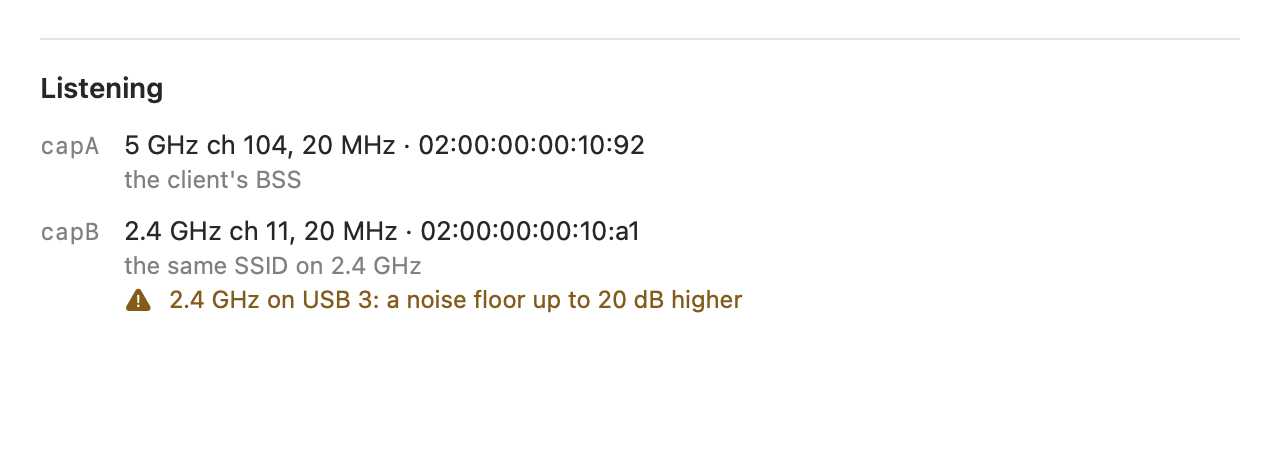
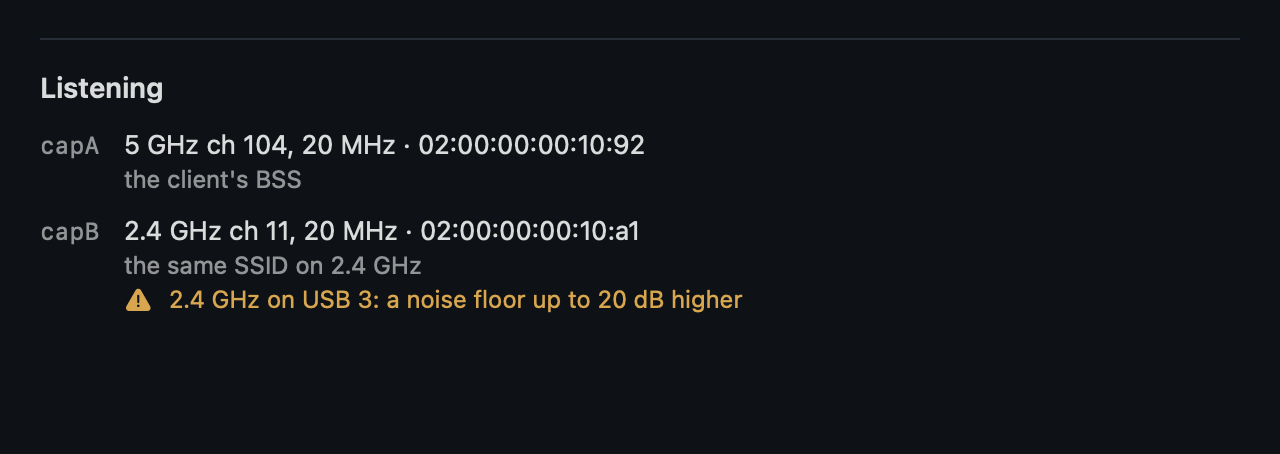
- Plug the sticks into the blue USB 3 ports for a client on 5 or 6 GHz. A busy channel does not fit through USB 2, and the frames it loses show in no counter. For a client on 2.4 GHz a USB 2 port is better: USB 3 raises the noise on 2.4 GHz by up to 20 dB. New Session says which port suits the band.
- Connect the sensor to the Mac with the Ethernet cable and power it on. The cable carries everything; the sensor has no Wi-Fi of its own and never joins the site's network.
- Put the Mac about a meter from the sensor. The Mac is a transmitter itself. Its own Wi-Fi stays on the site's network for Mist; keep its own traffic low while recording. Once the session runs, the strip at its top shows per channel whether the Mac overlaps the one measured:
- red: the Mac's Wi-Fi or AWDL is on a channel the sensor listens on. Turn the Mac's Wi-Fi off and take internet from the phone by USB tethering, with the phone's own Wi-Fi off. Never the phone's Wi-Fi hotspot: that is one more transmitter.
- AWDL (AirDrop, Handoff) can stay active with AirDrop off:
sudo ifconfig awdl0 downtakes it down for the session. New Session and the red line give it with a Copy button, to paste in Terminal. - For a client on 2.4 GHz, Bluetooth off on the Mac: the strip shows it in red while it is on.
Start the session
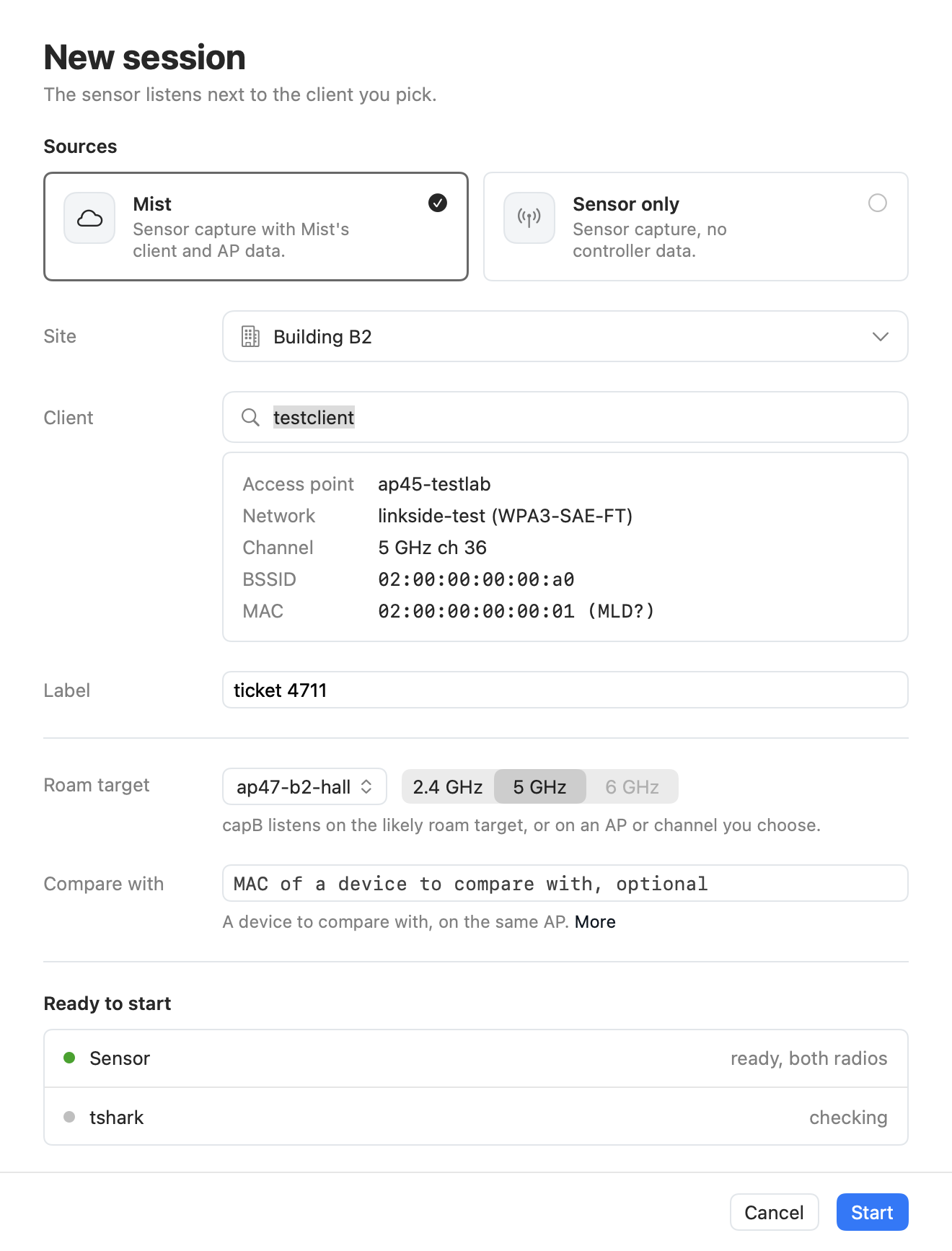
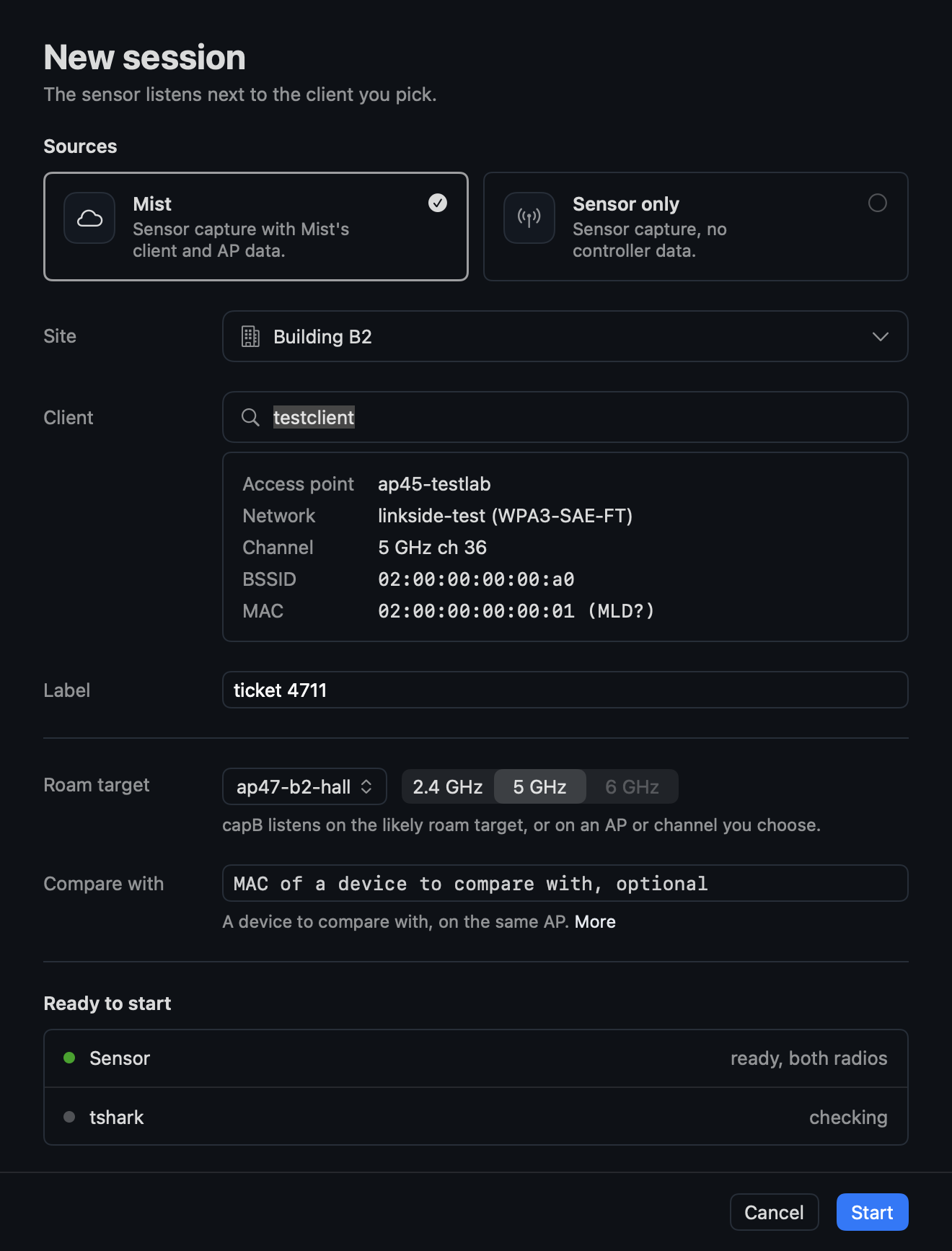
- File > New Session… (⌘N). Choose how to find the client: In Mist, the site, then the client by name, user, hostname or MAC address, or By MAC address, without Mist, typed from the device itself. Devices use a private MAC address per network: read it in the device's Wi-Fi settings for that network.
- The roam target for the second radio: Automatic takes the most likely one (the client's other MLO link, else the strongest neighbor with the same SSID). Choose an AP and its band when the complaint is about a move, such as the walk to the meeting room: the menu lists the client's own AP first, then the APs it hears, the strongest first, then the rest, with a search on the name. Channel takes a channel by its band and number, such as 5 GHz and 52. Compare with, optional: the MAC of an own device on the same AP with traffic of its own, which shows whether a loss is the client's.
- Start. Every session goes into the recordings folder. The sensor line must be green. The first radio goes to the AP Mist places the client on, or sweeps the channels until it hears a client typed in by MAC address, and locks on the client's channel at the width of its BSS; the second goes to the roam target. The Overview's Listening section says where each listens and why, and whether an own device to compare with counts; "Change capB…" moves the second radio at any time.
Record the problem
- Have the user do what goes wrong, for a few minutes: the call, the download, the walk. Note the clock time of each moment the user notices it.
- Watch the Overview. The verdict and the path's numbers fill in as the evidence comes. A question reads Untested where a rule had nothing to judge; that is no pass. Next, the line under the findings, says the one thing to do first: the user's (the traffic, a reconnect) or yours (the sensor's place, a stick's port). Once it came in, the line moves to the next.
- The client leaves both radios (it roamed to a channel neither watches): after 60 s the app searches for it, on Mist's channel first, and locks again where it finds it. The recording goes on; the gap is the sensor's, and the windows across it judge no loss.
- "Have the user turn Wi-Fi off and on": the capture has not seen the client join, so its login, its capabilities and, for Wi-Fi 7, its link addresses are missing. Ask the user to turn Wi-Fi off and on, or to reconnect to the network, once the problem has been recorded. The sensor catches the join by itself; it never forces one. A client from Mist that sends nothing on the air for 10 to 20 s may be a Wi-Fi 7 client on several links, whose own addresses only its join shows: the headline says "Not heard on the air", and the reconnect is the first step. Without the reconnect, such a session ends as a measurement limit, "Client not heard": recorded, not analyzed. A session that stays on "Not heard on the air" after the user reconnected may be following an address the device left on the rejoin (iOS "Rotating", Windows random hardware addresses "Change daily"): read the address again in the device's Wi-Fi settings and start a new session on it.
- "Ready to stop." on Next: the recording holds traffic both ways, a login, Mist where the client came from Mist, and the client next to the sensor. Until then Next reads "Not ready: " with what to do. Stop when the user has shown the problem, ready or not: a recording that lacks something is still recorded, and the report says what to ask for at the next visit.
Stop and judge
- Stop. With Mist the app waits up to about a minute after Stop for Mist's late events and stats ("Waiting for Mist"). Mist shows its data 10 to 30 s late.
- Check what the recording lacks: after Stop, Next says "Recording complete." or "Recording lacks a login."; the report says what to ask for. While the user is still there, a new session can fetch it: a reconnect, the traffic, the sensor next to the client.
- Read the verdict: reading the verdict. Choose the window of a moment the user noticed: drag on the time axis, or click the clock time of a hint. The verdict, the path's numbers and the report then judge that window.
- Export: File > Export Report and Capture… (⌘E). A folder with
report.md, the hand-back for the ticket, andcapture.pcapng, headers only.
When it fails
- Sensor not reachable: the Ethernet cable, and the Pi's power; a Pi still booting turns green by itself within a minute or two. New Session gives ssh's own message, or says that macOS refuses Linkside the local network: System Settings > Privacy & Security > Local Network, Linkside on.
- A stick missing: the app offers Reset Radios, which turns the USB ports off and on. Still missing after that: pull the sensor's power and plug it back in. A restart is no substitute: only cutting the power brings such a stick back.
- The sensor does not come up, or a check fails: New Session names the check (such as
regdomainorno-ntp). Those are the sensor's card, not the session: pull the power, swap the card for the spare, plug the power back in. Still failing on the spare: hand the sensor back. - The sensor's software too old for this app, or its last install cut off: New Session says so and does not start; Update Sensor in its row installs the app's own sources over the cable, in under a minute, and the row turns green. When the update fails, or the app says the sensor is too old for Update Sensor: swap the card for the spare; failing on the spare too, hand the sensor back. Another build or a newer sensor is only a note: the session starts.
- The sensor in use: New Session and the start name the session that holds it, with the Mac it runs on. Take Over is for a session left behind, in another window or on a Mac put away; one that still runs ends, with what it captured kept.
- The Ethernet link below 1000 Mbit/s: a note under the sensor line. Another cable or adapter; at 10 Mbit/s the streams stall.
- The session ends early: the toolbar says why. What it captured until then is kept, and can be exported like any other session.
Hand back
- The report goes with the ticket: its first lines say the outcome and why for a reader who was not there, then the findings with the setting in the Mist portal to change, and under the questions what the recording lacks, for whoever goes next.
- The recording folder goes back to whoever looks at it afterwards. It holds the client's frames cut to their headers and the Mist polls. It holds MAC addresses, the client's outer EAP identity and, in the folder's name, its hostname from Mist, but no IP addresses: handle it as ticket data. What a recording and the export hold, of the client and of others: what Linkside processes.
- Shut the sensor down after the last session of the day: File > Shut Down Sensor…, then wait ten seconds before you unplug it. The menu item is off while the window's session captures. Pulling the power during a session loses nothing on the sensor, whose capture writes nothing there: the recording is on the Mac. It only risks the sensor's card, which a shutdown spares.